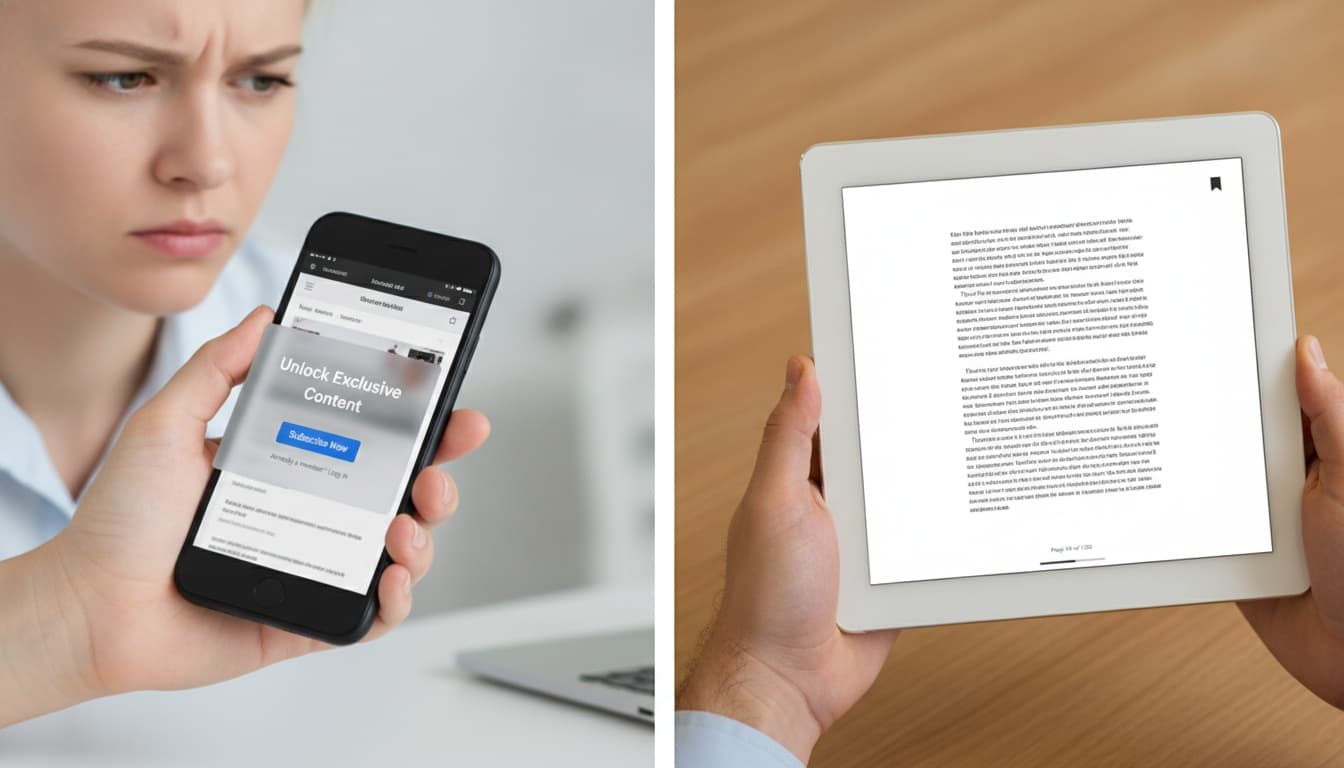
1. Why Speechify's Free Tier Falls Short
Speechify's free plan limits you to a handful of conversions, restricts voice selection, and blocks offline access entirely. The app is polished, the cross-platform support is genuine, and the premium voice library is solid. None of that matters if you hit a wall after ten minutes.
Deliberate design choice, not an oversight.
---
2. 5 Criteria That Separate Usable Free TTS Tools From Broken Ones
Here's the framework we use to evaluate them.
Voice Quality
Legacy robotic TTS — flat pitch, clipped consonants, mechanical rhythm — is a baseline failure condition now. Any tool worth recommending in 2026 uses neural voices, not SAPI4-era synthesis.
Document Support
This matters more than most reviews acknowledge. Can it read a PDF? A Google Doc? An EPUB? I've tested tools that claimed "PDF support" but actually just stripped formatting and read raw text. That's not the same thing. If your use case involves actual documents rather than web pages, this criterion eliminates half the field immediately.
Offline Access
Does the tool work without an internet connection? Commuters, students in low-bandwidth environments, anyone on a data cap — they need offline reading that actually delivers. Most cloud-dependent tools will buffer or fail entirely on a subway.
Accessibility Baseline
Synchronized word highlighting, adjustable voice speed, high-contrast display options: for users managing dyslexia or visual impairment, these aren't nice-to-haves. They're the reason the tool exists. (TTS tools can support documented accessibility frameworks like WCAG 2.1, but they do not address any clinical condition. For clinical guidance, consult a specialist.)
Platform Availability
A tool that only works in one browser or on one OS has a hard ceiling. This filter eliminates a few otherwise solid options before we even get to voice quality.
---
3. The Best Free Alternatives to Speechify in 2026
On mobile: scroll horizontally to see all columns.
| Tool | Platform | Offline | Document Types | Free Tier Limit | Voice Quality |
|---|---|---|---|---|---|
| ReadAloud | Chrome/Edge/Firefox | No (cloud voices) | Web, PDF, text | Unlimited | Good |
| NaturalReader | Web + Desktop | Partial | PDF, Google Docs, EPUB | 20 min/day | Very Good |
| Balabolka | Windows only | Yes | PDF, DOCX, EPUB, TXT | None | Moderate |
| TTSMaker | Browser | No | Text only | 3,000 chars/conversion | Good |
| ElevenLabs Reader | iOS, Android, Web | No | Web, PDF | Monthly char cap | Excellent |
| Microsoft Edge Read Aloud | Edge browser | Partial | Web, PDF | None | Very Good |
ReadAloud — Best Free Browser Extension
ReadAloud is 100% free, requires zero account setup, and handles text, URLs, and PDFs instantly from Chrome, Edge, or Firefox. You get instant playback with built-in browser voices, or upgrade to cloud voices for noticeably more natural speech. The trade-off is a 1-2 second internet connection delay. For offline reading, stick with browser voices; for quality-first listening, cloud voices are worth the latency.
I tested it on a 6,000-word research PDF with two-column formatting — it read straight through without layout errors, which is not a given for browser extensions.
The one real limitation: no mobile app yet. If your reading happens on a phone, ReadAloud isn't your answer today.
Processing speed: Local browser voices start instantly with zero buffering. Cloud voices add roughly 1-2 seconds of initial latency before playback begins.
ReadAloud also works on any web-based LMS — Canvas, Blackboard, Moodle — since it reads any active webpage. Students can listen to assignment text directly in their browser without copying anything out.
NaturalReader — Best for Documents and PDFs
NaturalReader's free tier gives you 20 minutes of listening per day (as of June 2026) — enough for a chapter or a long article, not enough for a full study session. I ran a scanned two-column academic paper through it; the OCR handled the layout cleanly where other free tools produced garbled output.
Google Docs integration works without friction, which matters for students working inside Google Classroom. Paste assignment text directly, hit play — no LMS workflow disruption.
Commercial use requires a paid plan, and the free voice selection is limited. For a student reading course materials, the free tier is workable. For anything heavier, you'll hit the cap mid-session.
Balabolka — Best Free Windows Desktop App
The UI is ugly. Genuinely, aggressively ugly. But it reads a 300-page EPUB without complaining, works completely offline, and costs exactly nothing — which puts it ahead of tools that look polished but cap you at 20 minutes a day.
Balabolka is freeware, supports EPUB, DOCX, PDF, and a dozen other formats, and runs on the SAPI5 voice engine. That means you can install third-party voice packs and get surprisingly good results. The default voices are functional but robotic. Spend 15 minutes installing a third-party SAPI5 voice pack and you'll get neural-quality speech that rivals paid tools — one-time setup, permanent improvement.
Processing speed: Local synthesis starts in under one second with no internet dependency. No buffering, no cloud round-trip. On a 50,000-word document, it queues and plays without hesitation.
Balabolka's freeware model means zero cloud dependency and zero risk of future paywalls — the developer has kept it free since 2007 because there's no server infrastructure to monetize. That's your guarantee of permanent free access. Setup requires some configuration, especially for voice engine installs. Budget 20 minutes the first time. Worth it.
TTSMaker — Best Free Web Tool for Quick Conversions
TTSMaker runs in any browser, needs no account, and supports 50+ languages (as of June 2026). The 3,000 character limit per conversion — roughly 500-600 words — is the ceiling you'll hit fast.
I pasted a 400-word article excerpt and had audio back in under 3 seconds. Free MP3 export is a genuine differentiator here. You can't import documents, so copy-paste is the only workflow — but for quick listen-to-articles use cases, it's fast and frictionless.
ESL learners can paste a passage in any of those 50+ languages and hear it read back in under 3 seconds — no account, no setup. That's the fastest pronunciation check in this list.
ElevenLabs Reader — Best for Voice Quality (Free Tier)
The voice quality on ElevenLabs Reader's free tier is the best in this list. I ran the same 500-word passage through ElevenLabs Reader and NaturalReader back-to-back — the difference in naturalness on complex sentence structures was audible immediately. The iOS and Android apps are polished, with a consistent interface across both platforms so switching devices doesn't mean relearning the tool.
The catch: there's a monthly character cap on the free plan, and the best voices are premium. ElevenLabs Reader supports 29 languages (as of June 2026), making it the strongest option for ESL learners who need multilingual reading assistance across sustained sessions.
Processing speed: Streams with roughly a 2-3 second initial buffer before playback begins. Subsequent paragraphs load ahead smoothly.
Word highlighting is supported, which pairs visual and auditory input during reading — relevant for users who benefit from that kind of synchronized text-to-audio feedback.
Microsoft Edge Read Aloud — Best Zero-Install Option
Edge Read Aloud is built directly into the browser. No download, no account, no setup. It reads web pages and PDFs natively using Azure neural TTS voices, the same voice engine Microsoft sells to enterprise customers.
For casual web reading on Windows, Edge Read Aloud is actually better than most dedicated free TTS apps. The voices are natural, the PDF support works, and there's no character cap. The limitation is that it's Edge-only and offers limited customization.
Processing speed: Near-instant start on web pages. PDF rendering adds 1-2 seconds depending on file size.
---
4. Peach vs. Speechify: Which Is Better?
Peach is a newer AI reading assistant with a cleaner mobile UI, positioned as a more focused alternative to Speechify's broader feature set. Speechify has broader platform support — including a Chrome extension, iOS, Android, Windows, and Mac — plus a larger voice library and better third-party integrations built up over several years.
For free users, the comparison is closer than Speechify's brand recognition suggests. Peach's free tier is more generous on mobile, with fewer hard restrictions in the first session. Speechify's free tier is more of a demo — you'll hit limits faster.
One concrete difference: Speechify has a Chrome extension that reads content directly in the browser without switching apps. Peach currently lacks this. For desktop users who listen to articles while browsing, that's a meaningful gap.
Verdict: Peach edges out on iOS free experience. Speechify wins on desktop and integration breadth. Neither is a clear winner for free users — your platform determines the answer.
---
5. Which Free Tool Works Best on Your Device (Android, iOS, Windows, Mac)
Android
Android users have a strong native TTS baseline. Google's built-in TTS engine, available through Accessibility settings, is genuinely capable and pairs well with ElevenLabs Reader as a primary app. The Android TTS ecosystem is more open than iOS — third-party voice engines install cleanly. Samsung devices also ship with Samsung TTS as an alternative engine, which some users prefer for Korean and certain Asian language support.
iOS
iOS users should start with Apple's built-in Spoken Content feature (Settings > Accessibility > Spoken Content). It's a zero-cost baseline that reads any text on screen. ElevenLabs Reader on iOS is the upgrade path when you want better voices and document import.
Windows Desktop
Windows desktop users have the clearest path: Balabolka for heavy document work, Edge Read Aloud for casual browsing. That combination covers 95% of use cases without spending anything.
Mac Desktop
Mac desktop users have fewer strong free options. NaturalReader's web app is the most practical choice. Safari's built-in reader view plus macOS Spoken Content (System Settings > Accessibility) is a serviceable zero-install baseline, but the voice selection is thin compared to Windows.
Browser-First (Any Platform)
Browser-first users on any platform: ReadAloud as the default extension, with Edge Read Aloud as a backup if you're already in Edge. See our TTS for students guide for LMS-specific tips on both tools.
---
6. Free vs. Paid: What You Actually Lose
Speechify premium genuinely offers things free tools don't: AI-generated summaries, playback speeds above 4.5x, and cross-device sync that actually works. If you're a power user who reads 2+ hours daily across phone and desktop, the $139/year is defensible.
For everyone else, the math is harder to justify. ElevenLabs Reader's free tier voice quality matches or beats Speechify's standard voices. Balabolka handles document formats Speechify struggles with. ReadAloud covers unlimited hours with no subscription.
The "free tools are unreliable" assumption is outdated. ReadAloud, Balabolka, and Edge Read Aloud are structurally stable: ReadAloud is ad-supported with a viable paid tier (verify current model at readaloud.app), Balabolka is freeware with no commercial dependency, and Edge Read Aloud is a Microsoft product. These aren't going anywhere.
One constraint does persist across almost every free option: most either cap your monthly usage or require an internet connection. If you need both unlimited access and offline capability, on-device TTS is the gap they don't fill.
Use-case verdicts:
- Students prepping for exams: ReadAloud (browser) + Balabolka (documents). Zero cost, unlimited hours. Both work on Canvas and Blackboard without any setup.
- Professionals with accessibility needs: NaturalReader or ElevenLabs Reader. Better voice quality, more format support.
- ESL learners: TTSMaker for quick multilingual conversions; ElevenLabs Reader for sustained reading across 29 languages.
- Users with dyslexia: Any tool with synchronized word highlighting. NaturalReader and ElevenLabs Reader both support this. Research on multimodal reading support documents the cognitive load reduction from synchronized visual-auditory input — see the International Dyslexia Association's reading support guidelines for clinical context. Neither tool is a clinical intervention for dyslexia; for clinical guidance, consult a specialist or occupational therapist.
---
7. Which Free Tools Will Survive Until 2027 (And Which Might Add Paywalls)
Not every "free" tool stays free. Here's the sustainability picture.
Balabolka carries the lowest shutdown risk. It's freeware with no server costs — the developer distributes it directly, and there's no cloud infrastructure to maintain or monetize. It's been free since 2007.
Edge Read Aloud is institutionally stable. It's a Microsoft product embedded in their browser. It's not going anywhere.
ReadAloud has a viable business model: ad-supported with an optional paid tier for premium cloud voices. That structure sustains the free tier without requiring it to convert users aggressively.
ElevenLabs Reader's free tier is the one to watch. ElevenLabs is a well-funded company scaling monetization — the free tier character cap could tighten as they grow. The core product isn't going away, but the free limits may shrink.
TTSMaker and NaturalReader sit in the middle. Both have paid tiers that subsidize free access, but neither has the institutional backing of Microsoft or the open-source permanence of Balabolka.
---
8. Quick Setup: Getting Started With the Top 3 Free Tools
ReadAloud (5 steps):
- Go to the Chrome Web Store and search "Read Aloud"
- Click "Add to Chrome" — no account required
- Open any webpage and click the ReadAloud icon in your toolbar
- Select a voice from the settings panel (cloud voices sound better; local voices work offline)
- Adjust speed with the slider, then hit play
Gotcha: Cloud voices require an internet connection. If you need offline reading, switch to a local voice in settings.
Balabolka (5 steps):
- Download Balabolka from the official site
- Install the application (no admin rights required on most Windows setups)
- Install a SAPI5 voice pack — Microsoft's free voices work; third-party options improve quality significantly
- Drag and drop your PDF, DOCX, or EPUB into the main window
- Configure speed and pitch in the toolbar, then press F5 to play
Gotcha: The default SAPI5 voices are mediocre. Spend 15 minutes installing a better voice pack — the difference is substantial.
ElevenLabs Reader (5 steps):
- Create a free ElevenLabs account
- Download the iOS or Android app from your platform's store
- Import content via URL, PDF upload, or paste
- Select a voice from the library (the free tier includes several high-quality options)
- Adjust speed and start listening
Gotcha: The monthly character cap on the free plan resets monthly, but heavy users will hit it mid-month. Track your usage in the account dashboard.
---
9. Key Takeaways
- ReadAloud is free forever, requires no account, and covers unlimited hours — right starting point for most users
- Balabolka is the only genuinely offline-capable free option with broad document support (PDF, EPUB, DOCX)
- ElevenLabs Reader has the best voice quality at no cost, but the monthly character cap is a real constraint
- Speechify premium at $139/year is worth it for power users needing cross-device sync and AI summaries — not for casual use
- Microsoft Edge Read Aloud is the most underrated option in this list; most Windows users already have it
- Free tools have closed the quality gap; the "you get what you pay for" assumption no longer holds for TTS
---
10. FAQ
Is ReadAloud completely free with no hidden paywall? Yes. ReadAloud is 100% free with no account required and no usage caps. Premium cloud voices are available as an optional paid add-on, but the core reading functionality — including browser TTS voices — has no limits.
Can I use Balabolka on a Mac?No. Balabolka is Windows-only and has no Mac version. Mac users should start with NaturalReader's web app (free tier, 20 min/day as of June 2026) or macOS's built-in Spoken Content feature (System Settings > Accessibility > Spoken Content), which reads any on-screen text at no cost using Apple's neural voices.
Does ElevenLabs Reader work offline? No. ElevenLabs Reader requires an active internet connection for all voice synthesis — there's no offline mode on the free or paid tier. If offline reading is a hard requirement, Balabolka on Windows is the strongest free option. For more, see VoicePod's offline TTS guide.
What's the character limit on TTSMaker's free tier? TTSMaker limits each conversion to 3,000 characters, roughly 500-600 words (as of June 2026). There's no daily cap on conversions, so you can run multiple sessions — you just can't feed it a long document in one pass. For longer documents, split the text into multiple 3,000-character chunks and run them sequentially; this workaround is fully viable.
Which free TTS tool is best for users with dyslexia? NaturalReader and ElevenLabs Reader both support synchronized word highlighting, which pairs visual and auditory input during reading. This approach aligns with documented reading support frameworks for dyslexia. Neither tool is a clinical intervention for dyslexia — for clinical guidance, consult a specialist or occupational therapist.
Is NaturalReader's free tier actually usable, or is it too restricted? Twenty minutes per day is enough for a focused reading session — a long article, a chapter, a report. It's not enough for extended study sessions. Students who need more should use Balabolka for documents or ReadAloud for web content alongside NaturalReader's free tier.
Does ReadAloud work with Google Docs? Yes. Since ReadAloud reads any active webpage, it works on Google Docs in the browser — no special integration required. NaturalReader also integrates with Google Docs directly, which is useful for students working inside Google Classroom. More on browser-based reading tools in VoicePod's text-to-speech comparison guide.
---
How VoicePod fits: Most of the tools above hit one of two walls — either they cap your monthly usage (ElevenLabs Reader, TTSMaker) or they require an internet connection (everything except Balabolka). If you've outgrown what free browser tools can do — no monthly cap, no cloud dependency, no internet required — VoicePod runs on-device neural TTS that starts in about 1.5 seconds on iPhone. Try it free.