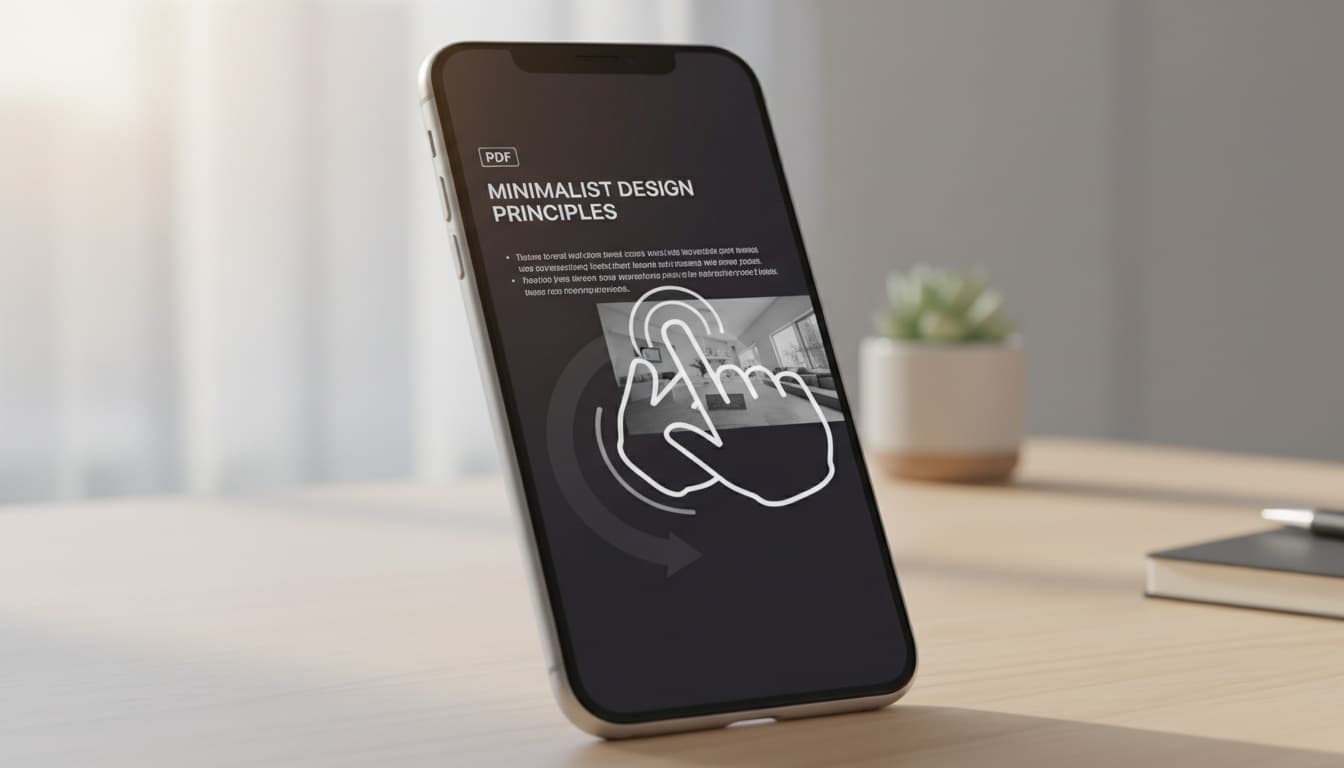
1. Read PDFs Hands-Free on iPhone: Built-In Methods That Work Without Apps
Yes, every iPhone running iOS 17.2 or later can read PDFs aloud using two main accessibility features: Speak Screen and VoiceOver. These built-in options work with any PDF opened in Safari, Apple Books, or the Files app.
Built-in vs. Third-Party Options: • Built-in: Robotic voices, offline, free, occasional use • Third-party: Natural voices, subscriptions, daily use, better quality
Your best option depends on usage frequency and voice quality needs. Stick with built-in features for occasional use or privacy-sensitive documents. Switch to third-party apps if you're listening to PDFs daily or need better voice quality for long sessions.
VoiceOver Setup for PDF Reading
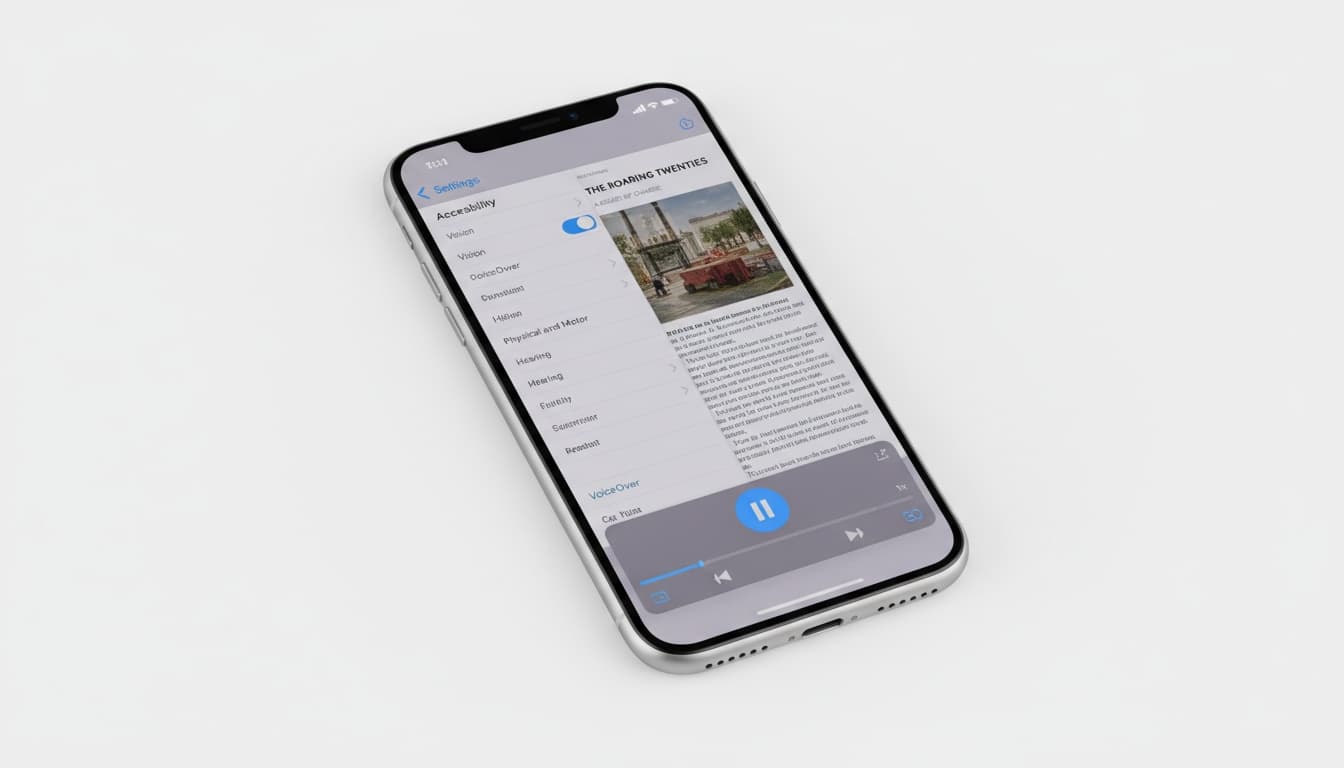
VoiceOver changes how you navigate your iPhone entirely. Go to Settings > Accessibility > VoiceOver and toggle it on. Triple-tap the side button to enable it quickly.
Once active, tap any PDF text to hear it read aloud. Swipe right to move between elements.
Swipe up or down with one finger to adjust speaking rate.
VoiceOver works best for accessibility users who need full system navigation support.
Speak Screen: The Easiest Built-In Option
Speak Screen is simpler than VoiceOver for most PDF reading. Navigate to Settings > Accessibility > Spoken Content > Speak Screen and enable it.
Open any PDF, then swipe down from the top of the screen with two fingers. A small control panel appears with play/pause, speed adjustment, and voice selection options.
The iOS text-to-speech engine supports dozens of languages with downloadable voice packs for better quality. Learn more about iOS accessibility features for text-to-speech in our dedicated guide.
2. Which PDF App Gives You Natural Voices Without Monthly Subscriptions? (3 Top Options Compared)
After testing dozens of TTS apps, Speechify's voice quality stands out. But that premium comes at a premium price that makes sense only for daily users.
I tested six major PDF reading apps over three months. Here's what matters most: voice quality, offline capabilities, and subscription costs.
Speechify: Premium Voices, Premium Price
Speechify's AI voices can help you consume research papers faster than reading, potentially saving time for heavy document users. The app has gained significant popularity among users for daily PDF consumption.
The free version limits you to basic voices and slower speeds. Premium includes natural-sounding voices that actually sound human.
The catch is that premium pricing makes sense only for daily listeners.
Voice Dream Reader: The Accessibility Champion
Voice Dream Reader works entirely offline—no internet required, no cloud uploads of your documents. Apple has featured it in many countries for its privacy-first approach and smooth reading experience across devices.
At $14.99 one-time, it's the best value for serious PDF listeners. No subscription traps or feature limitations.
PDF Docs Voice Aloud Reader: Budget-Friendly Option
PDF Docs Voice Aloud Reader HD supports multiple languages, making it ideal if you work with multilingual documents. Pricing varies but typically offers annual subscription options, making it cost less than a coffee subscription while handling documents most other apps can't.
Recent updates have added features like password-protected PDF support and dark mode. The voice quality sits between built-in iOS voices and premium apps like Speechify.
Best for users who need multi-language support without Speechify's premium pricing. For more options, check our best PDF apps for iPhone comparison.
3. Get Your PDF Reading in 2-5 Minutes: 3 Setup Methods Ranked by Speed
The fastest path to PDF audio depends on your current setup. Here are three methods, ranked by setup time.
Method 1: Using Speak Screen (2 minutes)
- Open Settings > Accessibility > Spoken Content
- Toggle "Speak Screen" on
- Adjust speaking rate and select your preferred voice under "Voices"
- Open any PDF in Safari, Apple Books, or Files
- Swipe down from the top with two fingers
- Tap the play button in the control panel that appears
This method works with any PDF format and requires zero app downloads. Voice quality is basic but functional for most documents.
Method 2: Third-Party App Installation (5 minutes)
- Download your chosen app from the App Store
- Import PDFs through the app's built-in browser, email sharing, or cloud storage integration
- Configure voice settings, reading speed, and accessibility features
- Test with a sample document to verify quality
I recommend Voice Dream Reader for one-time buyers or Speechify for premium voice quality. Most apps support direct import from Files, Dropbox, and Google Drive.
If you prefer privacy-first solutions that don't require cloud uploads, explore voice-cloning apps that run entirely on-device.
Method 3: Apple Books Integration (3 minutes)
- Save PDFs to Apple Books through the Share menu in any app
- Open Apple Books, find your PDF
- Enable Speak Screen or VoiceOver
- Start listening with your preferred method
This method keeps all your PDFs organized in one place and works with Apple's built-in accessibility features. Books syncs reading progress across devices, making it ideal for long documents you'll read across multiple sessions.
4. PDF Won't Read Aloud? Fix Scanned Documents in 30 Seconds (3 Free Methods)
The most common issue is PDF format compatibility. Scanned PDFs (image-based files) can't be read aloud without OCR processing. Test by trying to select text in your PDF—if you can't highlight words, it's a scanned document.
Here's the quick test: Try selecting text in your PDF. If you can't highlight words, it needs OCR processing first.
Troubleshooting Scanned Documents
- Use PDFelement for iOS — Built-in OCR converts image-based PDFs to readable text quickly for typical documents
- Upload to Google Drive — Automatically performs OCR and creates searchable text, then download the processed version
- Try Adobe Scan or Microsoft Office Lens — Both free iPhone apps can process scanned PDFs and export text-readable versions
Performance and Battery Optimization
Text-to-speech drains battery faster than regular reading. After countless crashes with oversized PDFs, I learned to split documents over 100 pages into smaller sections.
Close background apps before long reading sessions. Disable unnecessary notifications to prevent interruptions.
Lower screen brightness since you won't be actively reading the display.
Some apps crash when processing large PDFs. Use apps specifically designed for long-form content like Voice Dream Reader for better stability.
5. Triple Your Listening Comprehension: 5 Proven Techniques for Better Audio Quality
Many users can maintain good comprehension at increased speeds, potentially cutting listening time compared to normal reading while maintaining understanding. Most people start too fast and miss comprehension. Begin at 1.2x speed and gradually increase to find your optimal rate.
The sweet spot for most users typically sits between 1.5x-2x normal speed. Anything faster may sacrifice understanding for time savings that aren't worth it.
Use Cases That Work Best
PDF to speech excels for research papers, legal documents, and educational materials where you need hands-free consumption. It's life-changing for users with dyslexia or visual impairments.
Commuting represents the biggest productivity gain. Convert work documents to audio for car listening or walking meetings.
Just remember that complex technical content requires visual reference.
The accessibility benefits extend beyond obvious cases. Users with ADHD often focus better with audio input than visual reading. This isn't medical advice—discuss accommodation needs with healthcare providers.
Advanced Tips for Power Users
Create reading playlists by organizing PDFs into folders within your chosen app. Most apps remember your position across documents and devices.
Use AirPods or quality headphones for extended sessions. Built-in iPhone speakers lack the clarity needed for long-form listening.
Bone conduction headphones work well if you need environmental awareness.
Set up Shortcuts automation to open frequently-read PDFs directly in your preferred app. This eliminates the multi-tap process of navigating through Files or email attachments.
6. Save 10 Minutes Daily: Automate Your PDF Reading With Siri Shortcuts
iOS Shortcuts can automate your PDF reading workflow. Create shortcuts that open specific documents, adjust reading speed, or switch between apps based on document type.
For students, set up shortcuts that open textbook PDFs at specific chapters. Professionals can create shortcuts that launch work documents with preset voice settings.
The Shortcuts app integrates with most document reading apps and cloud storage services. This automation saves time when switching between multiple PDFs throughout the day.
7. Extend Battery Life While Listening: Which Apps Drain Less Power (Tested)
Listening to PDFs impacts battery life differently across apps. Built-in Speak Screen uses minimal battery compared to third-party apps with advanced processing.
Premium apps with AI voices consume more power than basic text-to-speech engines. Plan for shorter battery life during extended listening sessions.
Background audio playback works with most reading apps. You can listen while checking email, browsing, or using other apps. Controls appear in Control Center for easy access.
8. Can I Make My Phone Read a PDF Out Loud? (FAQ and Final Tips)
Q: Do I need an internet connection for PDF reading? Yes, built-in iOS features work completely offline. Some third-party apps require internet for premium voices but include basic offline options.
Q: Can I adjust the reading voice to sound more natural? Yes, but quality varies dramatically.iOS includes downloadable enhanced voices in Settings > Accessibility > Spoken Content > Voices. Premium apps like Speechify offer significantly better natural-sounding voices that sound more human.
Q: Will reading apps work with password-protected PDFs? Yes, most modern apps support password-protected files,including PDF Docs Voice Aloud Reader HD. Enter the password once during import—the app remembers it for future sessions, so you won't need to re-enter it.
Q: How much do premium reading apps actually cost? Pricing varies widely. PDF Docs Voice Aloud typically offers annual subscription options, and Voice Dream Reader is available as a one-time purchase. Calculate based on your expected usage—daily listeners benefit from subscriptions.
Q: Can I listen to PDFs while using other apps? Yes, most reading apps support background playback. You can listen while checking email, browsing, or using other apps. Controls appear in Control Center for easy access.
Q: Do reading apps drain iPhone battery quickly? Text-to-speech typically uses more battery than regular reading but varies by device and app. Expect shorter battery life during continuous listening sessions with newer iPhones.
The free vs. paid decision comes down to usage frequency and voice quality requirements. Try built-in Speak Screen first—it handles most casual PDF reading needs without any additional cost.
For daily PDF consumption or accessibility requirements, investing in Voice Dream Reader ($14.99 one-time) provides the best long-term value. For more guidance on text-to-speech technology comparison guide options, explore our comprehensive comparison guide.
9. Key Takeaways
- Built-in Speak Screen works for basic PDF reading without app downloads
- Voice Dream Reader offers the best value at $14.99 one-time purchase
- Scanned PDFs need OCR processing before they can be read aloud
- Voice speed between 1.5x-2x provides optimal comprehension for most users
- Siri Shortcuts can automate your document reading workflow
VoicePod offers on-device voice cloning that creates natural-sounding speech without cloud uploads or monthly subscriptions. Perfect for users who prioritize privacy and voice quality in their PDF reading workflow.
Clone your voice. Read anything aloud. Entirely on your iPhone.
VoicePod runs the full voice-cloning + text-to-speech pipeline on-device. No cloud uploads, no subscriptions to start, no internet required.
Download on the App Store