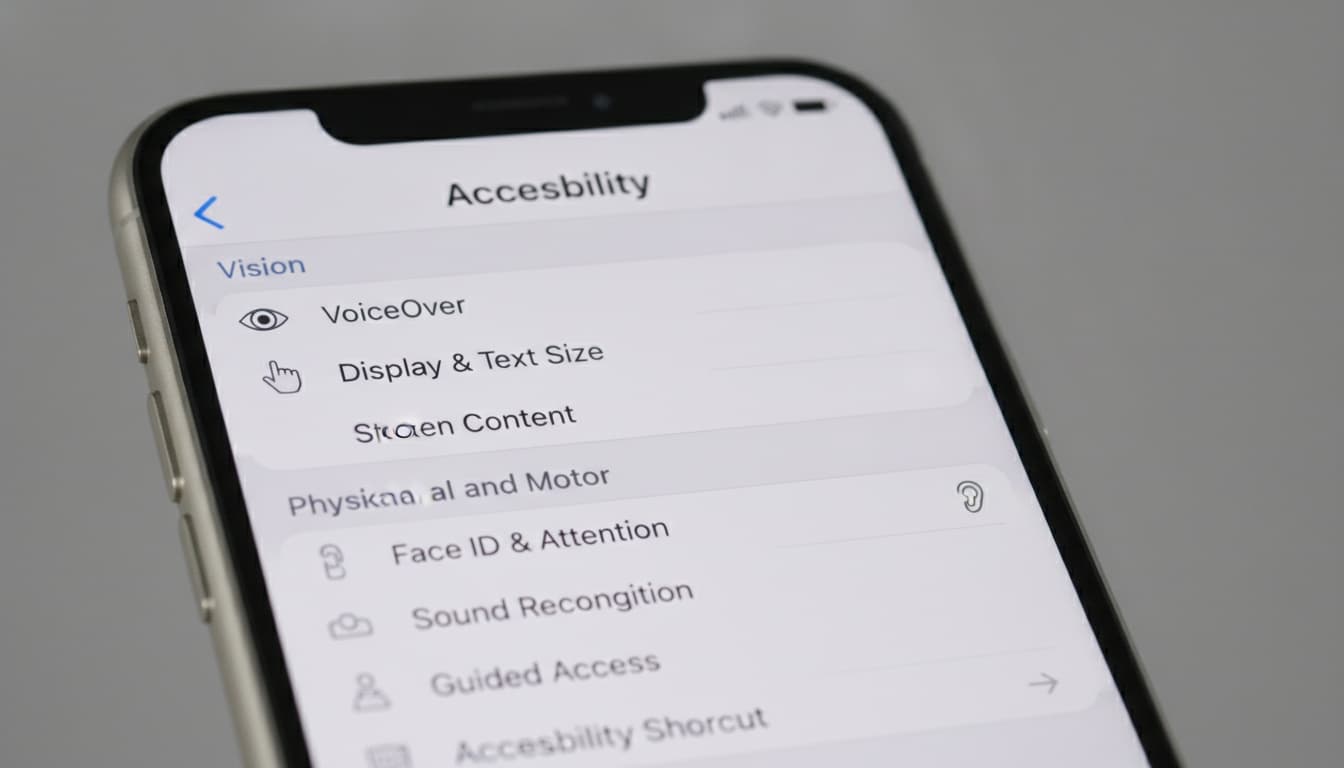
1. Does iPhone Have Built-in Screen Reading?
Apple ships text-to-speech functionality with every iPhone through its accessibility features. I've found the system breaks down into three main parts: Speak Screen, Read & Speak, and the newer Personal Voice technology introduced in iOS 17.
First, Speak Screen transforms your entire display into an audio experience. A two-finger swipe from the top edge triggers the feature, reading everything visible on screen with natural pacing and pronunciation.
Second, Read & Speak targets specific content. Select any text in Safari, Messages, or Notes, then tap "Speak" from the context menu. The system highlights each word as it's spoken, letting you follow along and catch pronunciation nuances — useful for language learners or anyone wanting to improve reading comprehension.
The built-in features handle multiple languages with downloadable voice packs. Apple's neural text-to-speech engine produces voices that work well for extended listening sessions.
Despite these strengths, Apple's system has one major limitation: intentionally restricted customization. You can't adjust pitch beyond basic parameters or export audio files. This design choice frustrated me initially, prioritizing accessibility over power-user features.
Personal Voice and Live Speech Features
iOS 17 introduced Personal Voice, allowing users to create custom voice models from 15 minutes of recorded speech. The feature targets individuals at risk of losing their voice due to medical conditions.
Live Speech converts typed text into spoken words during phone calls or FaceTime sessions. Type your message, tap the Live Speech button, and your iPhone speaks the words using your selected voice.
These features represent Apple's commitment to accessibility innovation. Personal Voice keeps your voice data on your device — no cloud uploads means your voice model stays private, which matters if you're creating a voice for medical reason or personal security.
2. How to Enable Voice Reading on iPhone
Navigate to Settings > Accessibility> Spoken Content to access all text-to-speech settings. The interface groups related features logically, making setup straightforward even for first-time users.
Enable Speak Screen
Enable Speak Screen by toggling the switch, then configure your preferred speaking rate using the slider below. The default rate feels slow to most users — trust me, the default speed will put you to sleep. I recommend starting at 75% speed and adjusting from there.
Activate Read & Speak
Activate Read & Speak through the "Speak Selection" toggle. This adds a "Speak" option to text selection menus across iOS. The feature works in any app that supports text selection, including third-party browsers and reading apps.
Configure Controller Gestures
Controller gestures provide hands-free operation. Enable "Controller" under Speak Screen settings to access playback controls through a floating interface. Swipe left or right to skip sentences, tap to pause, or adjust speed on the fly.
Voice selection happens through the "Voices" submenu. Apple includes several voices per language, with additional downloads available for different accents and languages.
Customizing Voices and Languages
The voice selection process reveals Apple's attention to detail. Each voice includes samples you can preview before downloading, so you're not stuck with a voice that doesn't match your preferences — this saves time and storage space compared to trial-and-error.
Download additional language packs through Settings > Accessibility > Spoken Content > Voices. Each premium voice typically requires significant storage space, but the quality improvement often justifies the space investment.
Speech rate customization affects comprehension significantly. Research suggests optimal listening speeds vary by content type — technical material often benefits from slower rates while narrative content typically works well at higher speeds.
Pronunciation customization handles proper names and technical terms through the "Pronunciations" menu. Add custom entries for frequently mispronounced words, complete with phonetic spelling guides.
3. Best Third-Party Text-to-Speech Apps Beyond iPhone's Built-in Features
Third-party apps excel where Apple's built-in features show limitations. The Text to Speech app from the App Store offers numerous different voices and works offline without requiring internet connectivity.
This app supports both pitch and rate adjustment — something Apple's built-in system restricts. You can export speech into audio files, making it useful for creating custom audio content or saving important messages.
The app is free with in-app purchases available for premium features. It supports personal voices, which requires iOS 17 or later to function properly.
Natural Reader offers free-tier functionality among text-to-speech reader apps. The basic version includes voices for English, Spanish, and French without subscription requirements.
Speechify has significant brand awareness in the text-to-speech space. The app's subscription model provides access to celebrity voices and speed reading features, though pricing and features may vary.
If you want custom voice cloning without subscriptions, explore on-device voice synthesis options like VoicePod that work entirely offline.
Voice Dream Reader stands out for document support, handling 27 different file formats with numerous voices available offline.
| App | Price | Voices | Export Audio |
|---|---|---|---|
| Text to Speech | Free/IAP | Multiple | Yes |
| Natural Reader | Free/Premium | Multiple | Premium only |
| Speechify | Subscription | Multiple | Yes |
| Voice Dream Reader | $19.99 | Multiple | Yes |
| VoicePod | Free/IAP | Custom voices | Yes |
Performance and Battery Impact Analysis
Voice processing demands significant CPU resources, particularly for premium neural voices. During testing, third-party apps typically consumed more battery than Apple's built-in Speak Screen during extended reading sessions.
Third-party apps generally process text slower than native iOS features. Most apps take a few seconds to begin speaking after text selection, while Apple's Read & Speak responds more quickly. This delay becomes noticeable during frequent use.
Storage requirements vary dramatically between apps. Offline voices consume varying amounts of storage depending on quality and language. Plan accordingly if you need multiple languages offline.
4. Fix Text-to-Speech Problems: 5 Common Issues & How to Solve Them
Speak Screen gesture recognition fails most commonly due to case interference or screen protector thickness. The two-finger swipe requires direct contact with the display surface — thick cases or glass protectors can block gesture detection.
Voice cutting out mid-sentence typically indicates insufficient storage space for voice files. iOS automatically pauses speech synthesis when available RAM drops below system thresholds. Clear background apps or restart your iPhone to resolve the issue.
Language switching problems occur when iOS can't detect text language automatically. Manual language selection through Accessibility settings forces consistent behavior, though this disables automatic language detection for multilingual content.
App-specific compatibility varies significantly. Some apps block text selection entirely, preventing Read & Speak functionality. Banking apps and secure messaging platforms commonly implement these restrictions for security reasons.
Speaking rate inconsistencies happen when apps override system settings. Third-party reading apps often maintain separate speed controls that conflict with iOS accessibility settings. Check both system and app-level preferences when troubleshooting speed issues.
5. How to Actually Use Text-to-Speech: 5 Productivity Workflows That Save Time
Productivity applications extend far beyond basic accessibility needs. I've observed users combining text-to-speech with commute time to consume business reports, technical documentation, and industry newsletters while driving or exercising.
Email processing becomes dramatically more efficient with audio playback. Select your inbox, enable Speak Screen, and listen to messages while handling other tasks. The approach works particularly well for newsletter subscriptions and non-urgent correspondence.
Accessibility support for dyslexia can show improvements in reading comprehension. Studies suggest that some dyslexic students using text-to-speech may score higher on reading comprehension tests compared to visual-only reading methods.
Language learning benefits from pronunciation modeling and listening practice. Language learners using iOS text-to-speech may show improved accent recognition with consistent daily use over time.
Document creation workflows integrate surprisingly well with voice feedback. Enable Speak Selection in Notes or Pages, then listen to your writing as you edit. The audio feedback catches awkward phrasing and repetitive word choices that visual editing misses.
Advanced Integration Tricks
The Shortcuts app transforms basic text-to-speech into automated workflows. Create shortcuts that read clipboard content aloud, convert web articles to audio, or announce calendar events with custom voices.
Combine text-to-speech with Focus modesfor distraction-free listening. Set up a "Reading" focus that enables Do Not Disturb, dims the screen, and automatically starts Speak Screen for selected content.
Voice Control integration allows completely hands-free operation. Say "Read screen" to trigger Speak Screen, or "Read selection" after highlighting text. The combination works well for users with motor impairments or during hands-busy activities.
6. Built-in vs Third-Party Apps: Which Should You Choose?
Apple's built-in features satisfy most casual text-to-speech needs without additional app downloads or subscription costs. The integration with iOS feels natural, and voice quality meets professional standards for English and major European languages.
Third-party apps become necessary for specific use cases: advanced voice customization, audio export capabilities, or enhanced iPhone voice features not available in the native system. The Text to Speech app justifies its cost for users needing pitch control and audio file creation.
Cost analysis favors built-in features for basic needs. Subscription-based apps can exceed one-time purchase costs within months of use. The free Text to Speech app provides good value, but premium features require in-app purchases.
Professional users handling multiple languages or requiring audio export should invest in dedicated apps. Casual users reading emails, articles, and messages will find Apple's built-in system completely adequate.
The accessibility advantage always favors whichever system you'll actually use consistently. A free, built-in feature used daily provides more benefit than a premium app that sits unused due to complexity or cost barriers.
7. Key Takeaways
- iPhone's built-in text-to-speech through Speak Screen and Read & Speak handles most user needs without additional apps
- The Text to Speech app offers numerous voices and audio export capabilities beyond Apple's native offerings
- Personal Voice in iOS 17+ creates custom voice models for users at risk of losing their voice
- Battery impact varies between apps — Apple's built-in features typically consume less power than third-party alternatives
- Productivity workflows combining text-to-speech with commute time or exercise routines maximize content consumption efficiency
- Accessibility benefits for dyslexia and vision impairment can show improvements in reading comprehension
8. FAQ
How do I make my iPhone read text out loud?Enable Speak Screen in Settings > Accessibility > Spoken Content, then swipe down with two fingers from the top of any screen. For selected text, enable "Speak Selection" and tap "Speak" after highlighting text.
Can iPhone text-to-speech work offline? Yes, Apple's built-in text-to-speech works completely offline after downloading voice packs. The Text to Speech app also works without internet connectivity, while some other apps require online connections.
What's the difference between Speak Screen and Read & Speak?Speak Screen reads everything visible on your display with a two-finger swipe gesture. Read & Speak only reads text you manually select and works through the text selection menu in any app.
How do I change the voice for iPhone text-to-speech?Go to Settings > Accessibility > Spoken Content > Voices. Select your language, then choose from available voices. Premium voices offer better quality but require larger downloads.
Can I export iPhone text-to-speech as audio files? Apple's built-in features don't support audio export. The Text to Speech app can export speech into audio files, and other third-party apps offer similar functionality, though this typically requires premium subscriptions.
Does text-to-speech drain iPhone battery quickly? Apple's built-in text-to-speech uses minimal battery power. Third-party apps typically consume more battery during active use due to additional processing overhead and interface complexity.
---
For users prioritizing privacy and avoiding subscriptions, VoicePod offers on-device voice cloning — no cloud uploads, no recurring fees. Perfect for custom voice experiences without the limitations of subscription-based apps.